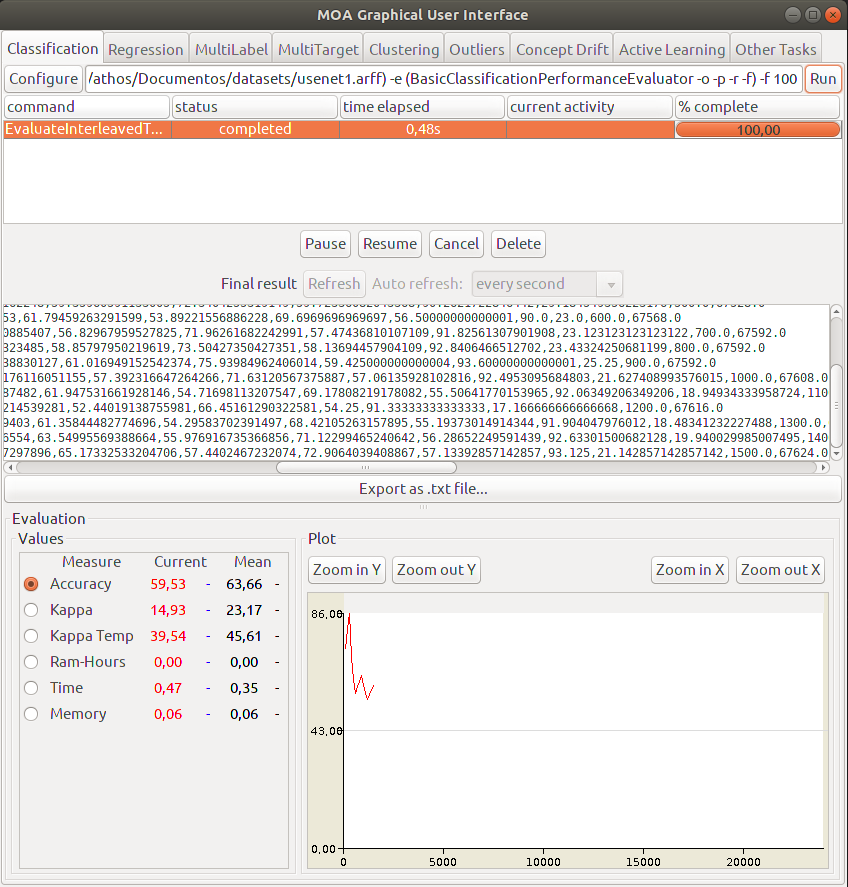
Examples (GUI)
If you want to use MOAFS in MOA’s graphical user interface (GUI), you can use the following command from a terminal (Linux/MAC) from the lib folder
where your MOA is installed:
java -cp moafs.jar:moa.jar -javaagent:sizeofag-1.0.4.jar moa.gui.GUI
Or if you are using Windows:
java -cp .;moafs.jar;moa.jar -javaagent:sizeofag-1.0.4.jar moa.gui.GUI
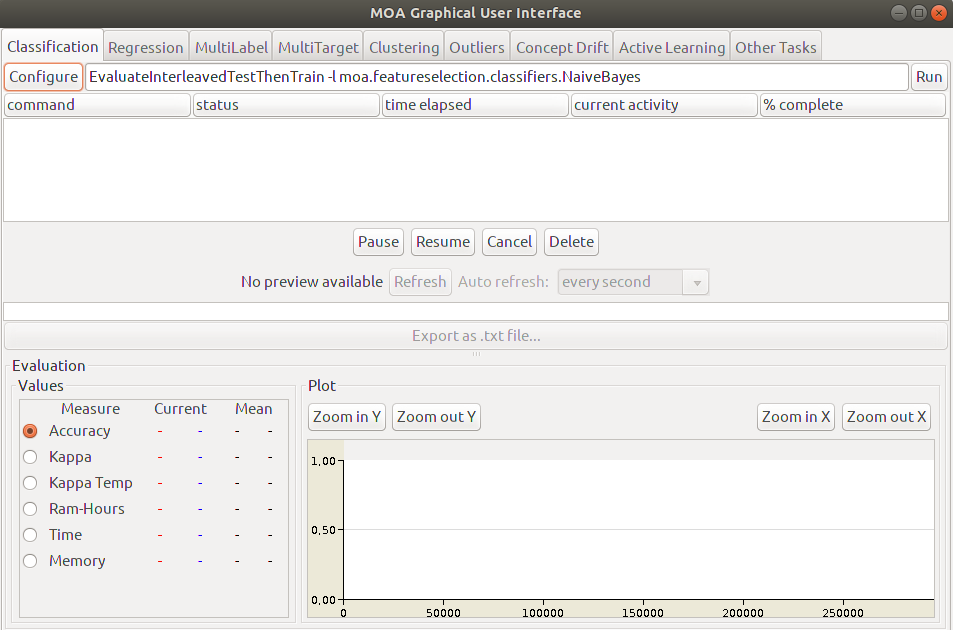
If everything is OK, MOA’s GUI should appear as illustrated in the figure below.
Classification without feature selection (No method)
Click on Configure button on the left side. The Configure Task window should appear. Select class moa.tasks.EvaluateInterleavedTestThenTrain in the
first dropdown list.
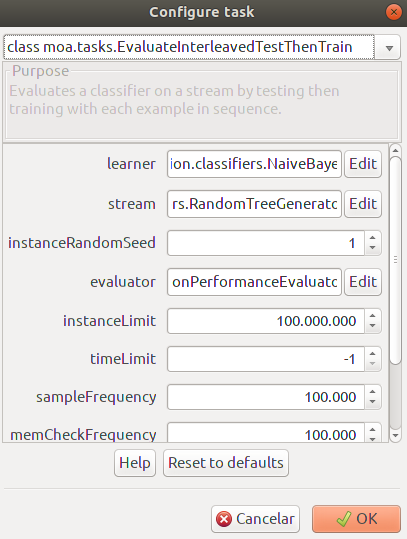
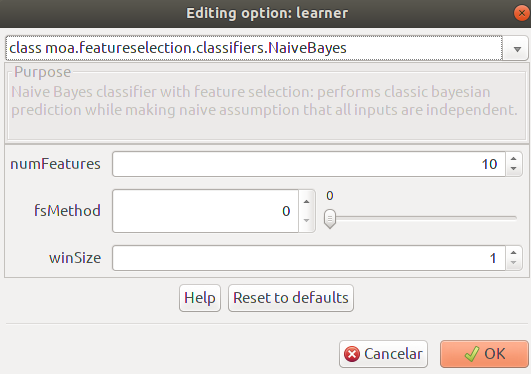
Still on the Configure Task window, on learner options, click on the Edit button. The Editing option: learner window should be presented. Select
class moa.featureselection.classifiers.NaiveBayes on the first dropdown list. Three options must be presented as ilustrated in the figure below.
With these options, you can select the number of relevant features to be selected, the feature selection method and the processing window size. To perform
classification without feature selection, set fsMethods to 0.
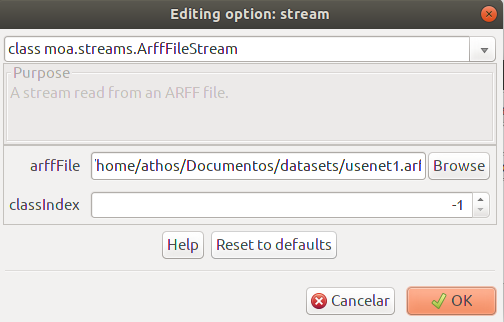
To select a data set from a local directory, on the Configure Task window, on stream options, click on the Edit button.
Then, Editing option: stream window should be presented. Select
class moa.streams.ArffFileStream on the first dropdown list. Then you can select the data set from the arffFile option. Click OK and then OK again.
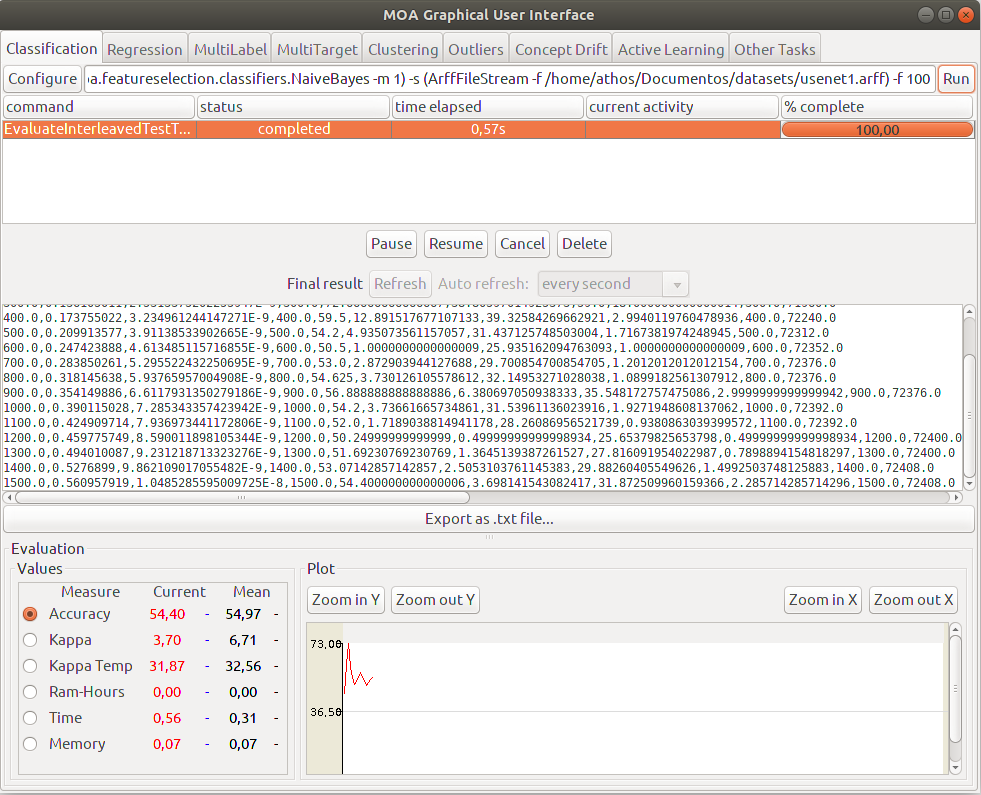
If everything is according to plan, just press the OK button on all windows and you will be returned to the main window. There, just click on the Run button on the right side and MOA
will perform the classification of the data set using the selected feature selection method.
Information Gain
Click on Configure button on the left side. The Configure Task window should appear. Select class moa.tasks.EvaluateInterleavedTestThenTrain in the
upper dropdown list.
On the Configure Task window, on learner options, click on the Edit button. The Editing option: learner window should be presented. Select
class moa.featureselection.classifiers.NaiveBayes on the first dropdown list.
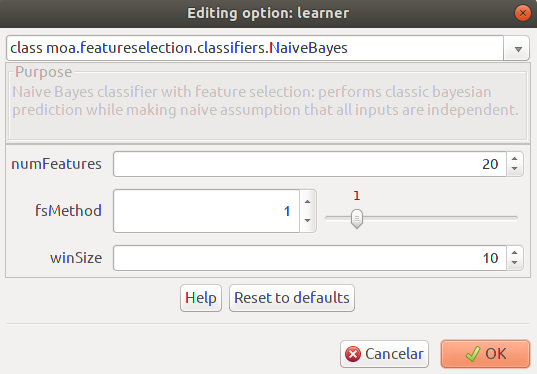
Select a desired number of features on numFeatures and the window size on winSize options. To use Information Gain as a feature selection method,
simply set fsMethod to 1. If everything is set up accordingly, click OK.
To select a data set from a local directory, on the Configure Task window, on stream options, click on the Edit button.
Then, Editing option: stream window should be presented. Select
class moa.streams.ArffFileStream on the first dropdown list. Then you can select the data set from the arffFile option. Click OK and then OK again.
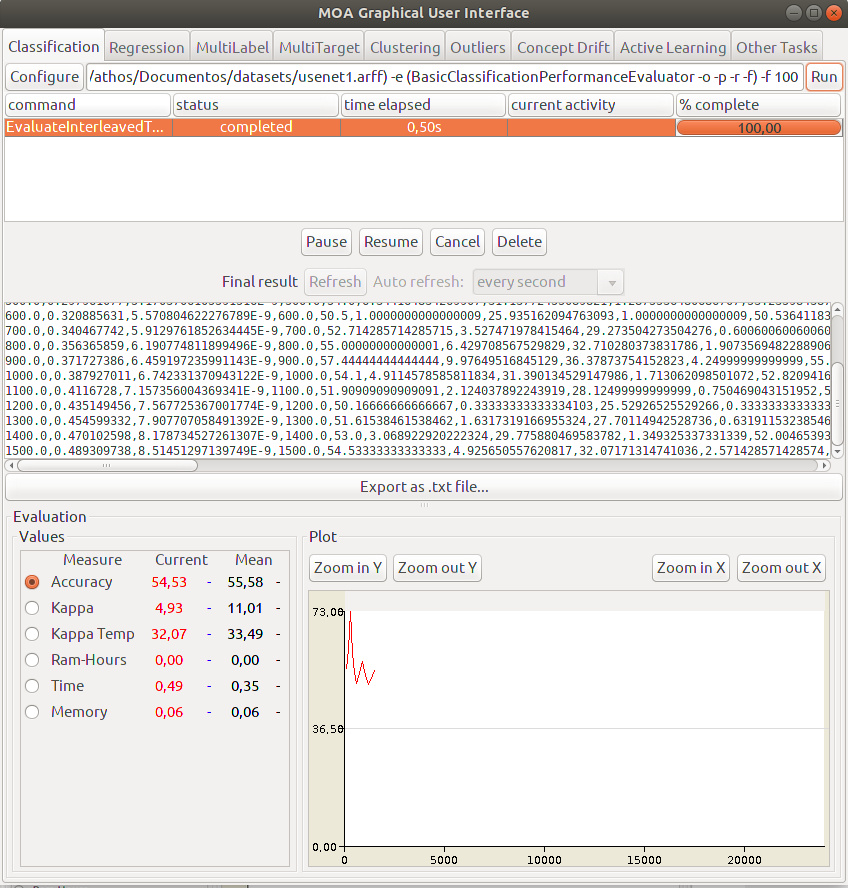
You will return to the main page. There, just click on the Run button on the right side and MOA
will perform the classification of the data set using Information Gain as the selected feature selection method.
Symmetrical Uncertainty
Click on Configure button on the left side. The Configure Task window should appear. Select class moa.tasks.EvaluateInterleavedTestThenTrain in the
upper dropdown list.
On the Configure Task window, on learner options, click on the Edit button. The Editing option: learner window should be presented. Select
class moa.featureselection.classifiers.NaiveBayes on the first dropdown list.
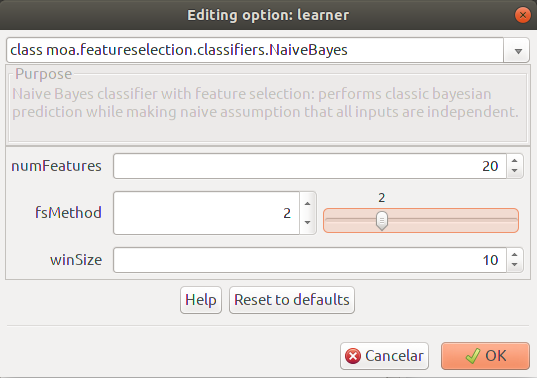
Select a desired number of features on numFeatures and the window size on winSize options. To use Symmetrical Uncertainty as a feature selection method,
simply set fsMethod to 2. If everything is set up accordingly, click OK.
To select a data set from a local directory, on the Configure Task window, on stream options, click on the Edit button.
Then, Editing option: stream window should be presented. Select
class moa.streams.ArffFileStream on the first dropdown list. Then you can select the data set from the arffFile option. Click OK and then OK again.
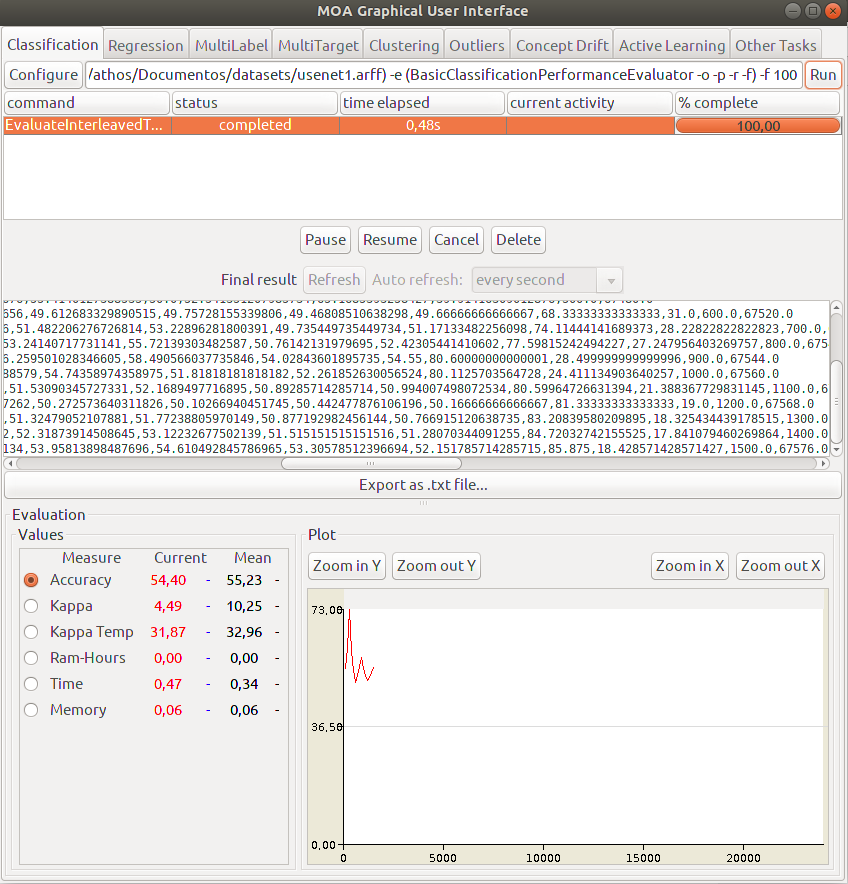
You will return to the main page. There, just click on the Run button on the right side and MOA
will perform the classification of the data set using Information Gain as the selected feature selection method.
Chi-Squared
Click on Configure button on the left side. The Configure Task window should appear. Select class moa.tasks.EvaluateInterleavedTestThenTrain in the
upper dropdown list.
On the Configure Task window, on learner options, click on the Edit button. The Editing option: learner window should be presented. Select
class moa.featureselection.classifiers.NaiveBayes on the first dropdown list.
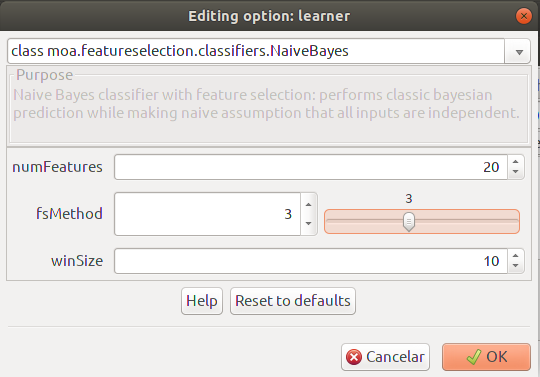
Select a desired number of features on numFeatures and the window size on winSize options. To use Chi-Squared as a feature selection method,
simply set fsMethod to 3. If everything is set up accordingly, click OK.
To select a data set from a local directory, on the Configure Task window, on stream options, click on the Edit button.
Then, Editing option: stream window should be presented. Select
class moa.streams.ArffFileStream on the first dropdown list. Then you can select the data set from the arffFile option. Click OK and then OK again.
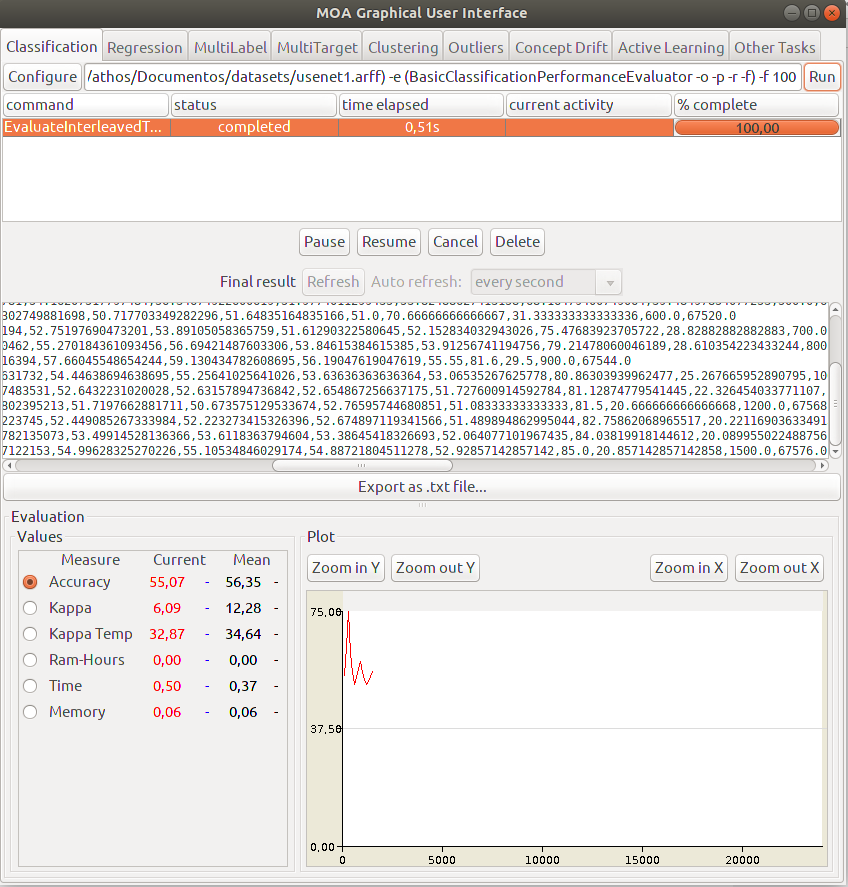
You will return to the main page. There, just click on the Run button on the right side and MOA
will perform the classification of the data set using Chi-Squared as the selected feature selection method.
Cramers V-Test
Click on Configure button on the left side. The Configure Task window should appear. Select class moa.tasks.EvaluateInterleavedTestThenTrain in the
upper dropdown list.
On the Configure Task window, on learner options, click on the Edit button. The Editing option: learner window should be presented. Select
class moa.featureselection.classifiers.NaiveBayes on the first dropdown list.
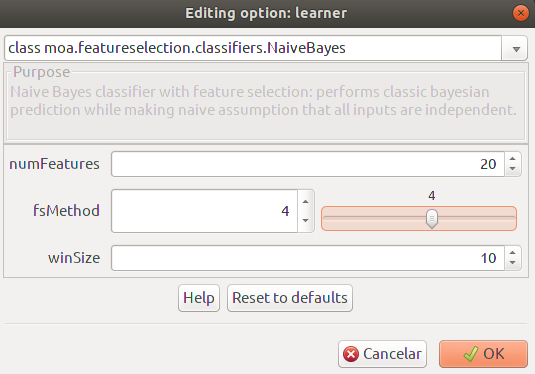
Select a desired number of features on numFeatures and the window size on winSize options. To use Cramers V-Test as a feature selection method,
simply set fsMethod to 4. If everything is set up accordingly, click OK.
To select a data set from a local directory, on the Configure Task window, on stream options, click on the Edit button.
Then, Editing option: stream window should be presented. Select
class moa.streams.ArffFileStream on the first dropdown list. Then you can select the data set from the arffFile option. Click OK and then OK again.
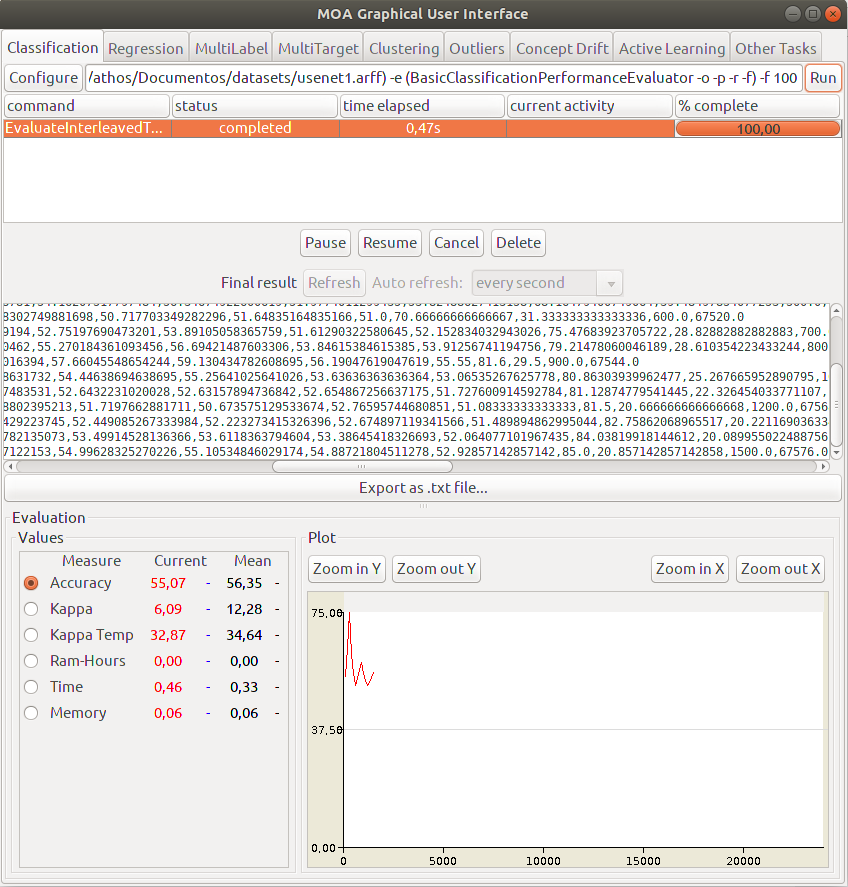
You will return to the main page. There, just click on the Run button on the right side and MOA
will perform the classification of the data set using Cramers V-Test as the selected feature selection method.
Gain Ratio
Click on Configure button on the left side. The Configure Task window should appear. Select class moa.tasks.EvaluateInterleavedTestThenTrain in the
upper dropdown list.
On the Configure Task window, on learner options, click on the Edit button. The Editing option: learner window should be presented. Select
class moa.featureselection.classifiers.NaiveBayes on the first dropdown list.
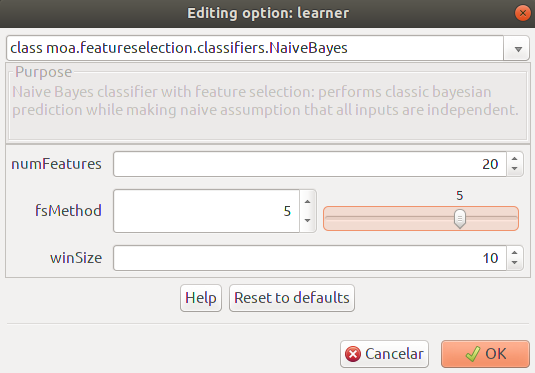
Select a desired number of features on numFeatures and the window size on winSize options. To use Gain Ratio as a feature selection method,
simply set fsMethod to 5. If everything is set up accordingly, click OK.
To select a data set from a local directory, on the Configure Task window, on stream options, click on the Edit button.
Then, Editing option: stream window should be presented. Select
class moa.streams.ArffFileStream on the first dropdown list. Then you can select the data set from the arffFile option. Click OK and then OK again.
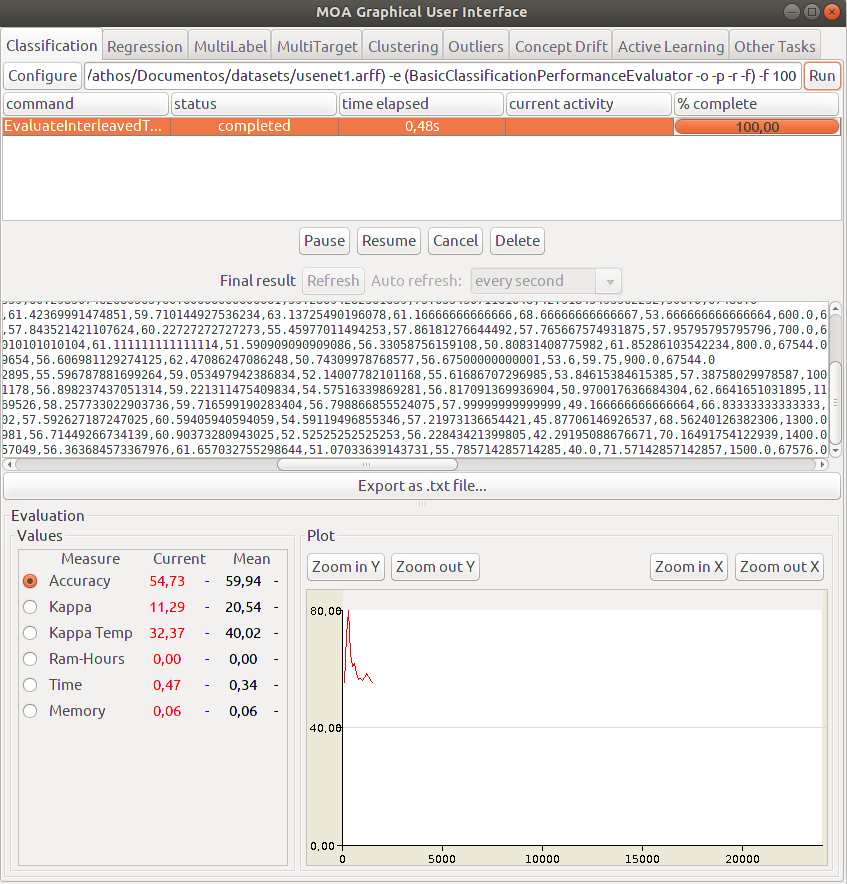
You will return to the main page. There, just click on the Run button on the right side and MOA
will perform the classification of the data set using Gain Ratio as the selected feature selection method.
Extremal Feature Selection
Click on Configure button on the left side. The Configure Task window should appear. Select class moa.tasks.EvaluateInterleavedTestThenTrain in the
upper dropdown list.
On the Configure Task window, on learner options, click on the Edit button. The Editing option: learner window should be presented. Select
class moa.featureselection.classifiers.NaiveBayes on the first dropdown list.
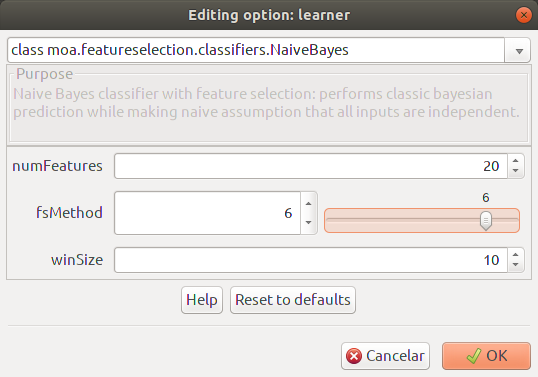
Select a desired number of features on numFeatures and the window size on winSize options. To use Extremal Feature Selection as a feature selection method,
simply set fsMethod to 6. If everything is set up accordingly, click OK.
To select a data set from a local directory, on the Configure Task window, on stream options, click on the Edit button.
Then, Editing option: stream window should be presented. Select
class moa.streams.ArffFileStream on the first dropdown list. Then you can select the data set from the arffFile option. Click OK and then OK again.
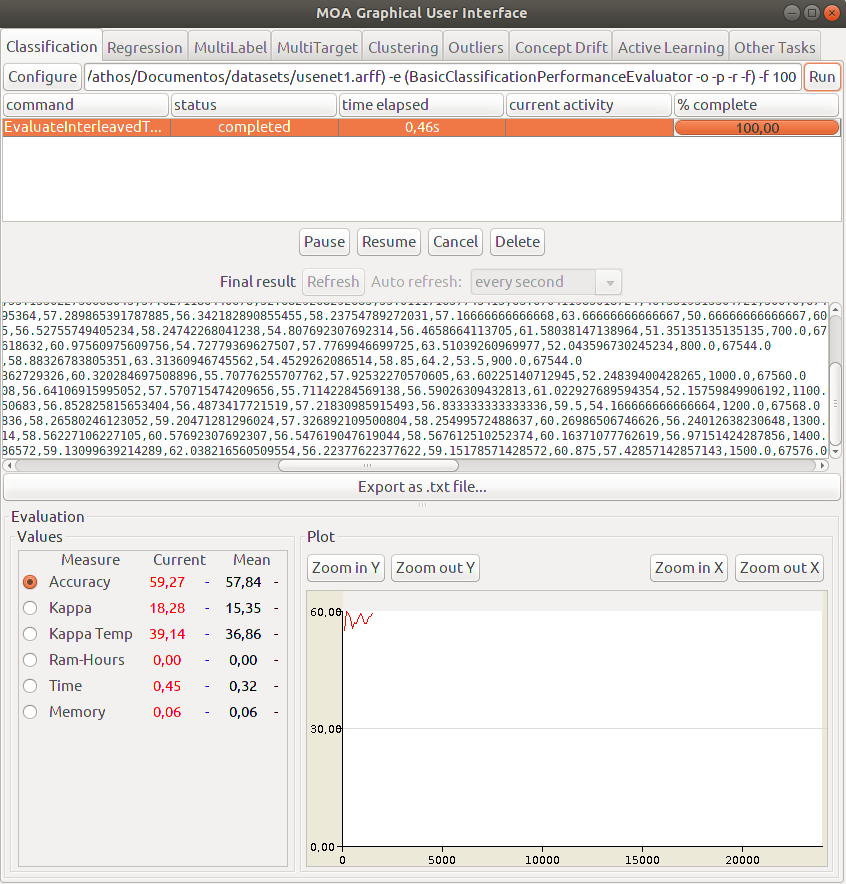
You will return to the main page. There, just click on the Run button on the right side and MOA
will perform the classification of the data set using Extremal Feature Selection as the selected feature selection method.
Online Feature Selection
Click on Configure button on the left side. The Configure Task window should appear. Select class moa.tasks.EvaluateInterleavedTestThenTrain in the
upper dropdown list.
On the Configure Task window, on learner options, click on the Edit button. The Editing option: learner window should be presented. Select
class moa.featureselection.classifiers.NaiveBayes on the first dropdown list.
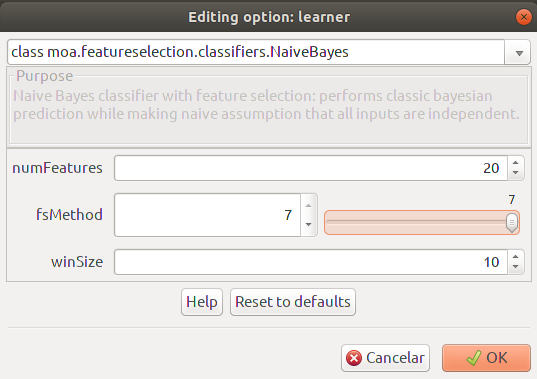
Select a desired number of features on numFeatures and the window size on winSize options. To use online Feature Selection as a feature selection method,
simply set fsMethod to 7. If everything is set up accordingly, click OK.
To select a data set from a local directory, on the Configure Task window, on stream options, click on the Edit button.
Then, Editing option: stream window should be presented. Select
class moa.streams.ArffFileStream on the first dropdown list. Then you can select the data set from the arffFile option. Click OK and then OK again.
You will return to the main page. There, just click on the Run button on the right side and MOA
will perform the classification of the data set using Online Feature Selection as the selected feature selection method.